

Automated Email Templates
Last updated on May 15, 2026
Automated Email Templates
Automated messages are emails and texts sent automatically based on certain events, such as appointment bookings, reminders, invoices, and member registrations. Default message templates are provided for each option and can be used as-is or customised to suit your needs.
Navigating to Message Templates
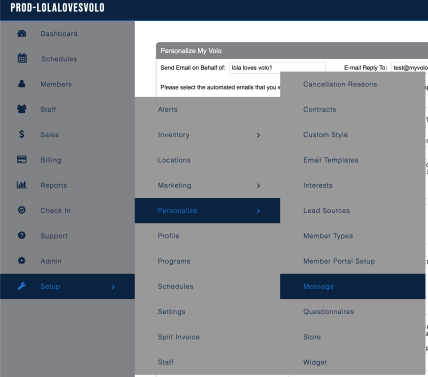
- Click Setup in the left-hand navigation sidebar.
- Hover over Personalize to expand its submenu.
- Click Message.
Email Settings
At the top of the page, two global settings apply to all automated emails:
- Send Email on Behalf of – The business name that will appear as the sender on all automated emails.
- E-mail Reply To – The email address that replies will be sent to.
Enabling and Editing Templates
Each template has a checkbox to enable or disable it. When checked, the automated message will be sent when the relevant event occurs. Each template can be customised by editing the text in the message field.
Field Tags
Many templates support field tags — dynamic placeholders that are automatically replaced with real data when the message is sent. Available tags are listed to the right of each template. To use a tag, copy and paste it including the # symbols into your message.
Available Templates
Member-Facing Messages
| Template | Description | Available Tags |
|---|---|---|
| Book Appointment Confirmation Email | Sent when a member books an appointment or class. | #MEMBER FIRST NAME#, #MEMBER LAST NAME#, #STAFF FIRST NAME#, #STAFF LAST NAME#, #APPOINTMENT TYPE#, #DATE#, #TIME# |
| Calendar Attachment Body | Text sent with the calendar attachment when an appointment is booked. | #BUSINESS PHONE#, #VOLO SITE LINK# |
| Book Appointment Confirmation Text | Automatic text sent when a member books an appointment. Texting options must be enabled to send automated texts. | — |
| Cancel Appointment Confirmation Message | Sent when a member's appointment is cancelled. | #MEMBER FIRST NAME#, #MEMBER LAST NAME#, #STAFF FIRST NAME#, #STAFF LAST NAME#, #APPOINTMENT TYPE#, #DATE#, #TIME# |
| Appointment Reminder Email | Sent before the member's booked appointment. Two Preferences settings control the timing: the number of days before (1 Day Before through 5 Days Before), and the time of day the reminder is sent (hourly options from 12:00 AM to 11:00 PM). | #MEMBER FIRST NAME#, #MEMBER LAST NAME#, #STAFF FIRST NAME#, #STAFF LAST NAME#, #APPOINTMENT TYPE#, #DATE#, #TIME# |
| Appointment Reminder Text | Text reminder sent before the member's booked appointment. Use the Preferences setting to configure timing. Texting options must be enabled. | — |
| Invoice Message | Sent when emailing an invoice to a member. The invoice is attached. | — |
| Invoice Receipt Message | Sent when emailing a receipt to a member. The receipt is attached. | — |
| E-mail Invoice Greeting | Greeting message included when emailing an invoice. | #MEMBER FIRST NAME#, #MEMBER LAST NAME# |
| Birthday Message | Sent on or before the member's birthday. Use the Preferences setting to configure how far in advance it is sent: before 0 day, before 1 day, before 2 days, before 3 days, before 4 days, or before 5 days. Use the Status setting to control which members receive it: Active, Inactive, or Both. | — |
| New Member Email | Sent to any new member record entered into Member Manager. | #MEMBER FIRST NAME#, #MEMBER LAST NAME#, #LOGIN#, #VOLO SITE START LINK#, #VOLO SITE END LINK# |
| Waitlist Sign Up | Sent to a member on the class waitlist when a spot becomes available. | #MEMBER FIRST NAME#, #MEMBER LAST NAME#, #CLASS NAME#, #DATE#, #TIME#, #VOLO SITE START LINK#, #VOLO SITE END LINK# |
Staff-Facing Messages
| Template | Description | Available Tags |
|---|---|---|
| Staff Notification | Controls how staff notifications are sent. Choose Send At to send all next-day notifications at a specific time, or Schedule Changes to send a separate notification for each schedule change as it happens. | — |
| Staff Email Notification (Send at) | Email sent to staff at the configured time with their upcoming schedule. | #STAFF FIRST NAME#, #STAFF LAST NAME#, #DATE#, #LIST OF APPOINTMENTS#, #LIST OF APPOINTMENTS WITH NAMES#, #NAMES# |
| Staff Text Notification (Send at) | Text version of the Send At notification. Texting options must be enabled. | #STAFF FIRST NAME#, #STAFF LAST NAME#, #DATE#, #LIST OF APPOINTMENTS#, #LIST OF APPOINTMENTS WITH NAMES#, #NAMES# |
| Staff Email Notification (Schedule changes) | Email sent to staff when a change is made to their schedule. | #STAFF FIRST NAME#, #STAFF LAST NAME#, #DATE#, #TIME#, #LIST OF APPOINTMENTS#, #LIST OF APPOINTMENTS WITH NAMES#, #APPOINTMENT TYPE#, #NAMES# |
| Staff Text Notification (Schedule changes) | Text version of the Schedule Changes notification. Texting options must be enabled. | #STAFF FIRST NAME#, #STAFF LAST NAME#, #DATE#, #TIME#, #LIST OF APPOINTMENTS#, #LIST OF APPOINTMENTS WITH NAMES#, #APPOINTMENT TYPE#, #NAMES# |
| Staff Email Cancel Notification (Schedule changes) | Email sent to staff when an appointment is cancelled. Only available when using the Schedule Changes option. | #STAFF FIRST NAME#, #STAFF LAST NAME#, #TIME#, #DATE#, #APPOINTMENT TYPE#, #NAMES# |
| Staff Text Cancel Notification (Schedule changes) | Text version of the cancellation notification. Only available for Schedule Changes and requires texting options to be enabled. | #STAFF FIRST NAME#, #STAFF LAST NAME#, #TIME#, #DATE#, #APPOINTMENT TYPE#, #NAMES# |
| Staff New Member Notification | Sent to a staff member when a new member record is created. Can be enabled under Setup > Marketing > Registration. | #MEMBER FIRST NAME#, #MEMBER LAST NAME#, #MEMBER EMAIL#, #MEMBER PHONE#, #MEMBER CELL#, #LOGIN#, #LEAD SOURCE# |
| Week View Email Header | Header included when sending a staff member's week view of appointments. | — |
Saving
Click Save at the bottom of the page to apply any changes made to the templates or settings.
Still need help?
If you can’t find what you’re looking for, our support team is happy to help.