

Terminate A Contract
Last modified by Isaac Mejia on 2026/03/19 17:51
Last updated on March 19, 2026
Terminate A Contract
Terminate a Contract
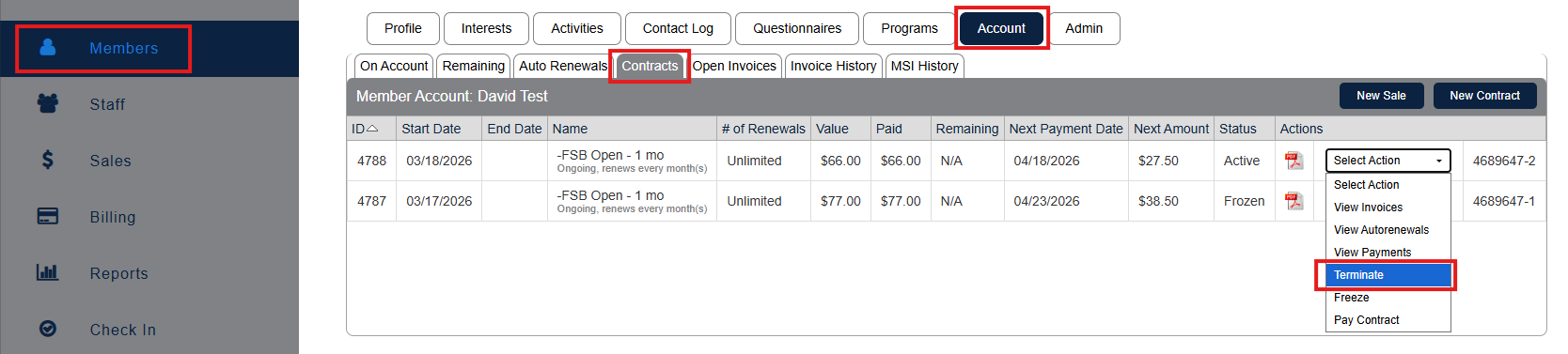
Navigate to Members and search for the member whose contract you wish to terminate.
Click Account>Contracts
Select Terminate from the Select Action drop-down menu.
The next screen presents two cancellation options:
- Cancel with nothing further due — cancels the contract immediately, including any outstanding invoices.
- Cancel with a final payment due — allows for a notice period, for example cancelling from the following month if 30 days notice is required.

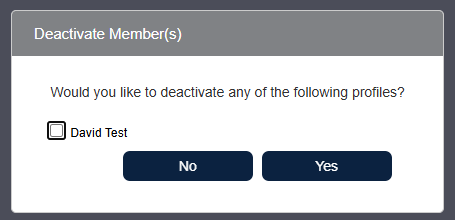
- If the member will no longer be attending the club, select the radio button next to their name and click Yes to deactivate them. Choose No to keep the member active. For example, if you are cancelling in order to replace the contract with a new one.
Still need help?
If you can’t find what you’re looking for, our support team is happy to help.