

Sale For Existing Member
Last updated on March 23, 2026
Sale For Existing Member
Use Existing Member Sale to sell a product, package, or service to a member already in the system. Navigate to Sales > Existing Member Sale and search by first name, last name, or member ID.
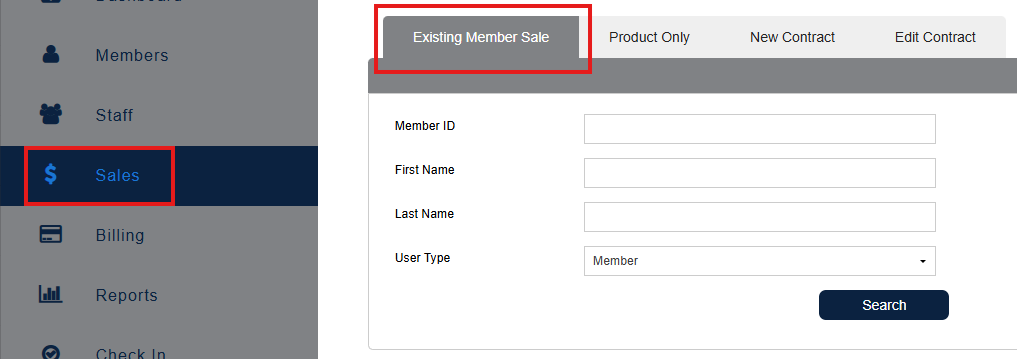
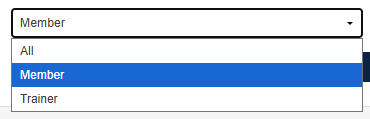
Choose User Type. You can search for Member, Trainer or All. User Trainer if you are creating a sale to a staff member - "purchased by" staff.
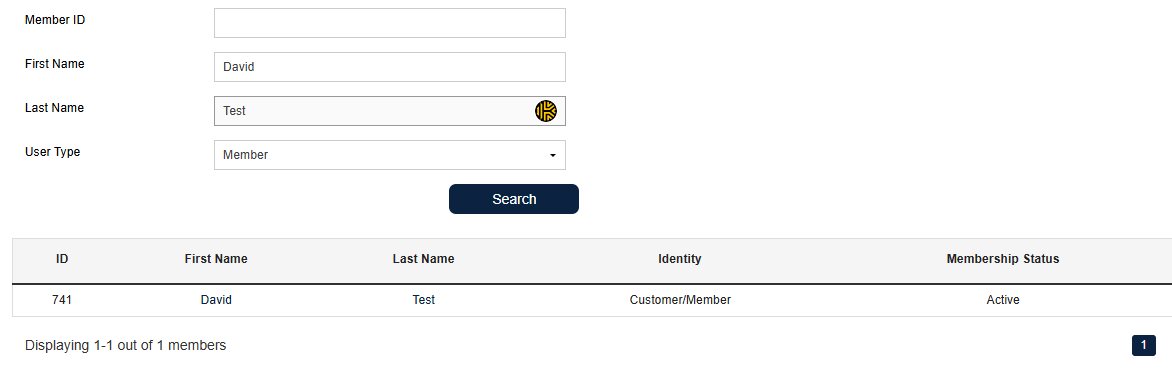
Click Search, then double-click anywhere on the member's highlighted row to select them. Avoid clicking the first or last name directly, as this will open the member's profile in a separate window instead.

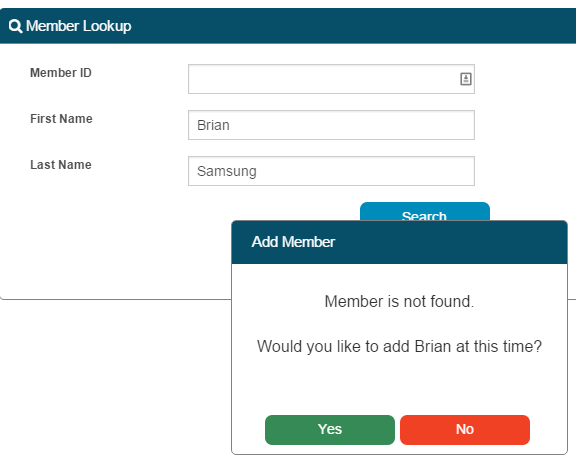
If your member is not found, a pop up will give you the option to add them.
Select the Products, Services, or Packages you wish to sell — multiple items from any category can be added. Click Add to Cart after you have selected the desired Products, Services, etc.
Note: Contracts must be sold separately via Sales > New Contract.
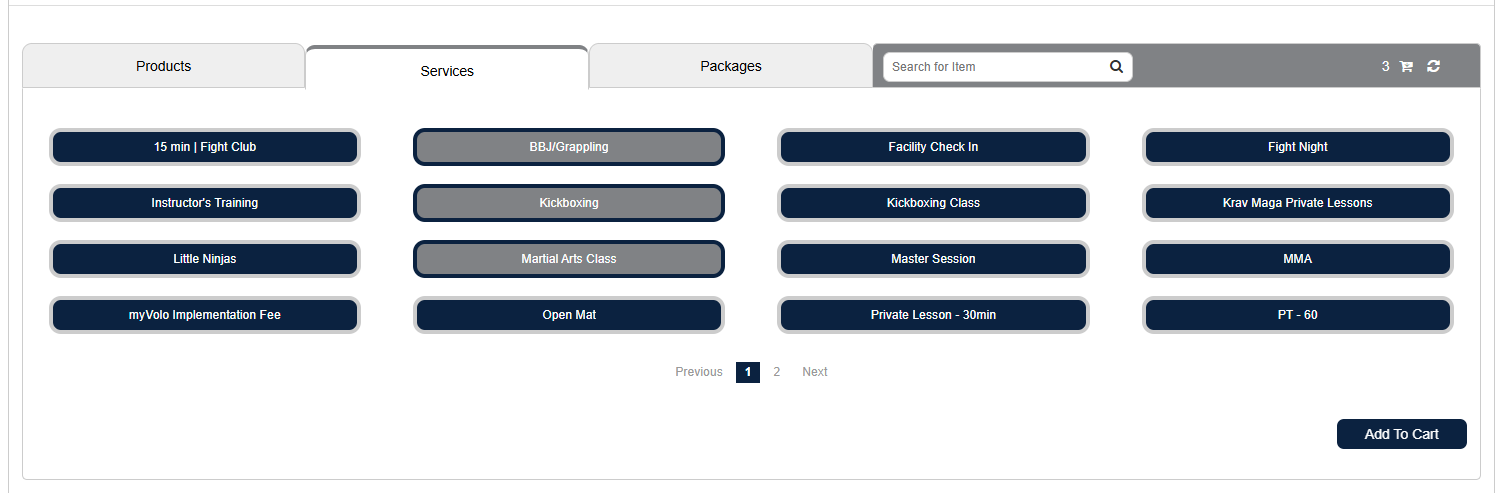
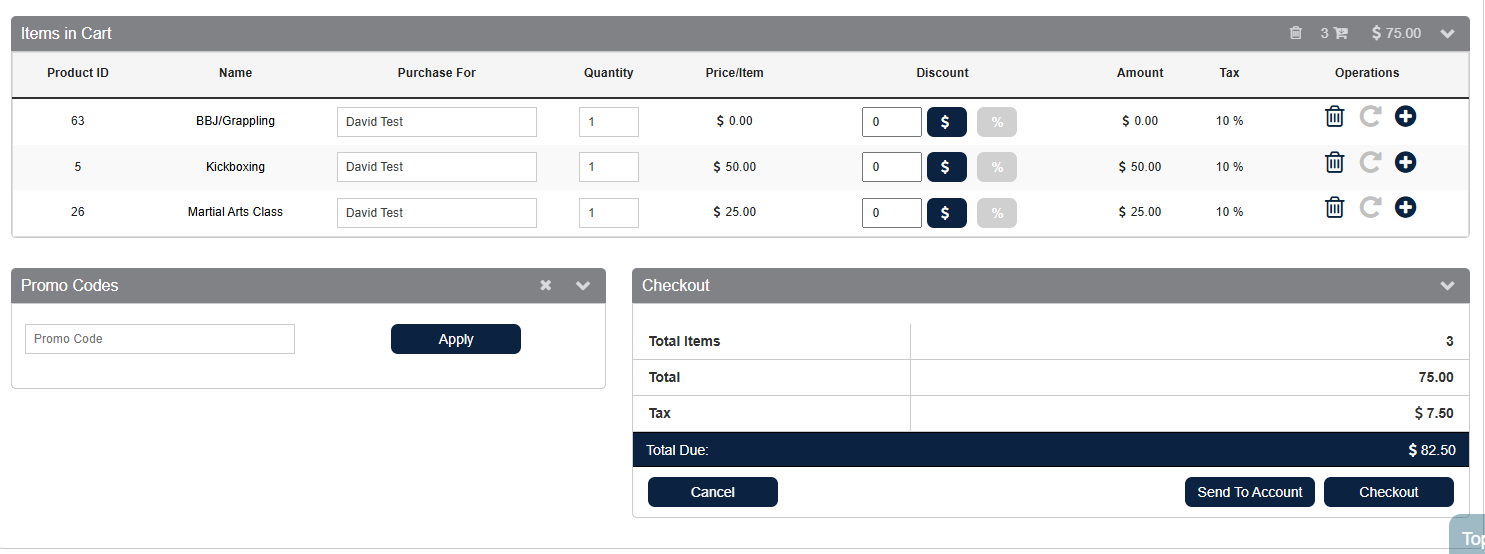
After clicking Add to Cart, you can adjust the quantity, apply discounts, remove any incorrectly added items, and update the Member Purchased For field if purchasing on behalf of a different member. Member Manager will locate their record or offer the option to add a new member if not found.
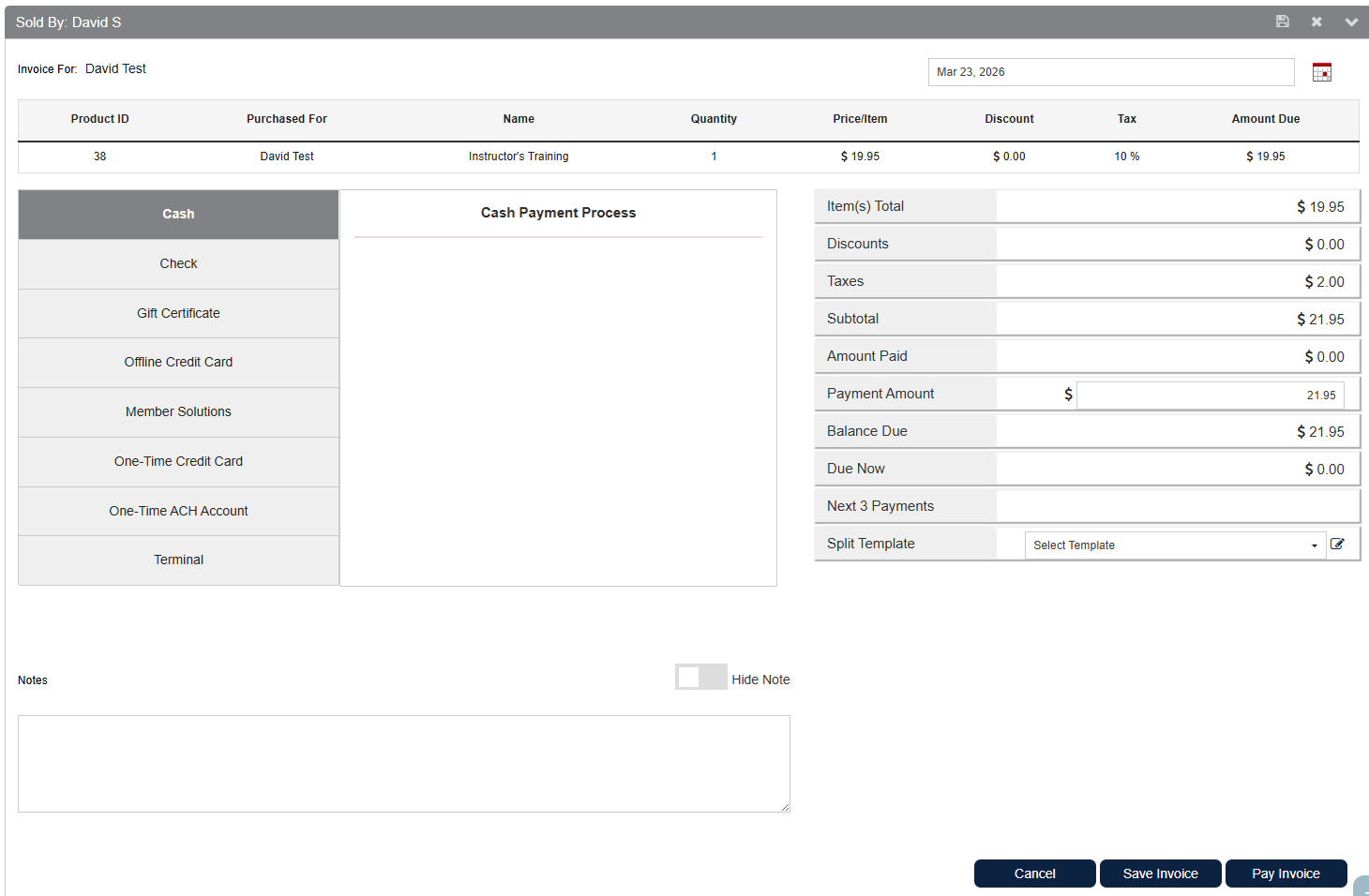
Once the Invoice is created, choose the payment method and click Pay Now.
Note on Save To Account and Save Invoices Feature
Send to Account & Save Invoice
These two features offer different ways to defer payment for a sale.
Send to Account Send to Account allows items to be added to a member's account without generating an invoice immediately. The items will appear under the Remaining and On Account tabs of the member's profile. This is typically used when a member agrees to pay at a later date. Because no invoice is generated right away, the items will not appear as outstanding — instead, an invoice is generated at a later time covering all "on account" items at once.
Save Invoice Save Invoice generates an invoice immediately but allows it to be saved without taking payment on the spot. The saved invoice can be found under Open Invoices in the member's profile and can be paid at any time. If the due date is the same day, the invoice will appear as outstanding if not paid immediately.
Key Difference Send to Account defers both the invoice and payment to a later date, while Save Invoice generates the invoice immediately but defers only the payment.
Still need help?
If you can’t find what you’re looking for, our support team is happy to help.