

Lead Flow - Attaching a Trial Package
Lead Flow - Attaching a Trial Package
Overview
This article walks through how to attach a trial package to a lead flow and connect it to a lead source so members receive it automatically.
The setup works as a chain: a Lead Source is linked to a Lead Flow, which has a Trial Package action attached. When a member is assigned that lead source, the lead flow will process and the trial package will be created on their account.
Step 1: Navigate to Lead Flow Setup
Go to Setup > Marketing > Lead Flows to access your lead flow configuration.
Step 2: Create or Edit a Lead Flow
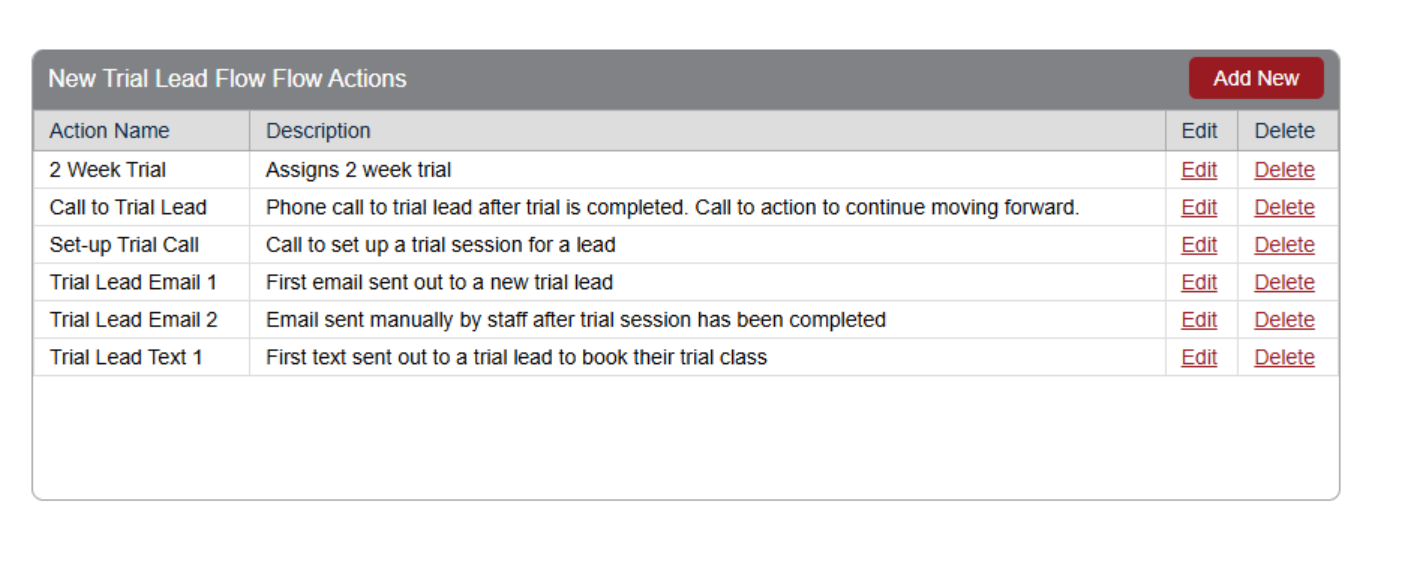
You can either create a new lead flow by clicking Add New in the top right corner, or edit an existing lead flow's actions by clicking on the number in the Flow Actions column.
Step 3: Select Action Type
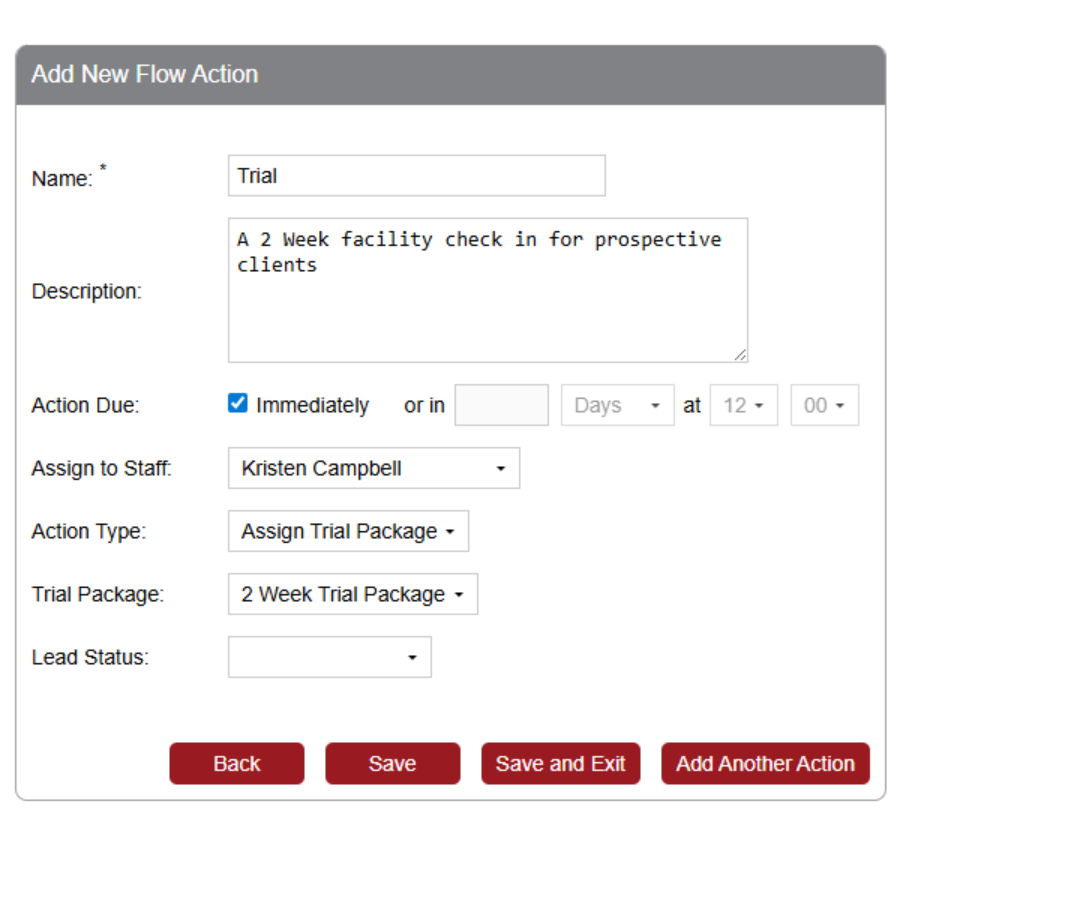
Once you're in the edit action screen, select Assign Trial Package from the Action Type dropdown list.
Step 4: Select a Trial Package
If a trial package already exists, it will be selectable here. If not, a trial package will be generated automatically the first time a member is assigned this lead flow.
Attaching the Lead Flow to a Lead Source
Once your lead flow is configured, go to Setup > Marketing > Lead Sources and connect it to a lead source. There are two ways to assign that lead source to members:
Option A: Assign a lead source directly to a member
Manually assign the lead source to a member's profile. If that lead source has a connected lead flow with a trial package, it will be processed for that member.
Option B: Configure Registration to assign a lead source automatically
Go to Setup > Registration and configure it so that every member created from that area automatically receives a specific lead source. Once assigned, they'll be placed into the connected lead flow and the trial package will be generated.
Package Activation and Expiration
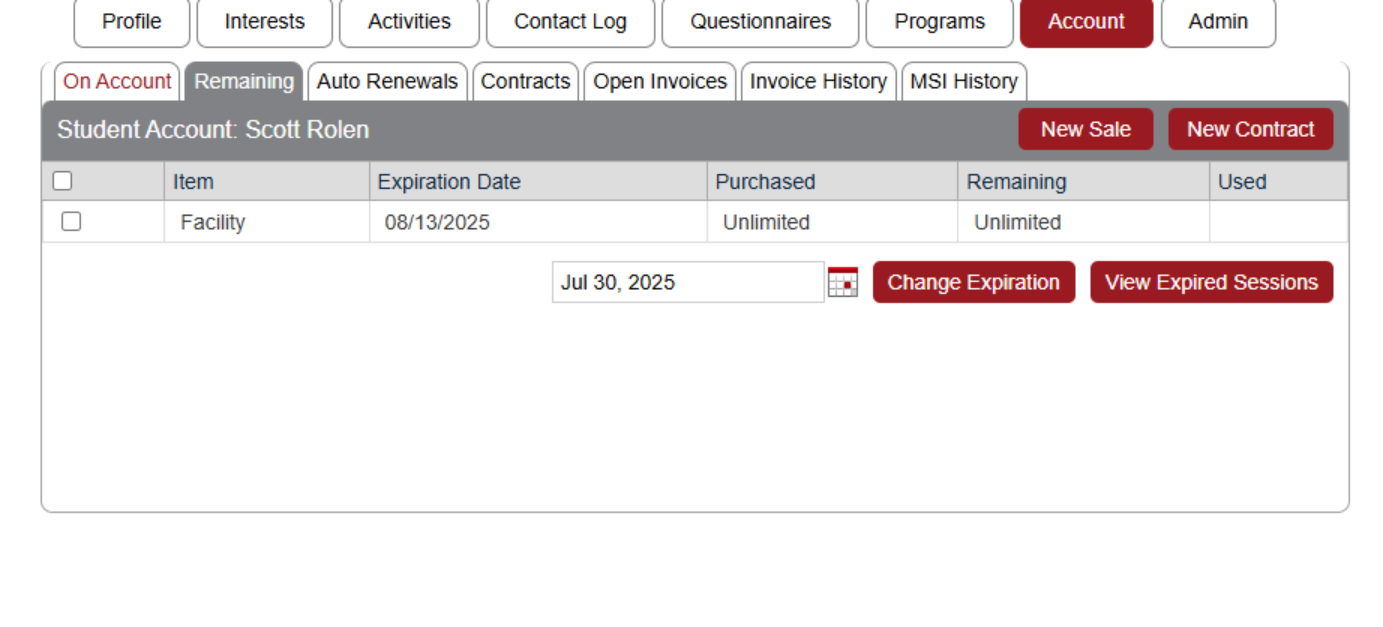
- Once assigned, the trial package appears in the member's account.
- The package is set to expire two weeks from the account creation date.
Important Considerations
Recommended Action: Configure an automated email notification to be sent immediately after the package is assigned to inform the member of their trial access.