

Resetting Member Portal Password 
Last modified by Isaac Mejia on 2026/02/05 15:22
Last updated on February 05, 2026
Resetting Member Portal Password 
Follow these steps to reset your member portal password using the Forgot Password option from theMember Portal login page.
Note: Members must get to the login page by going to their Member Portal site first. Example: mp.membersolutions.com/mysite
From the main login page click on Forgot Passwordimage:mpForgotPassword.png
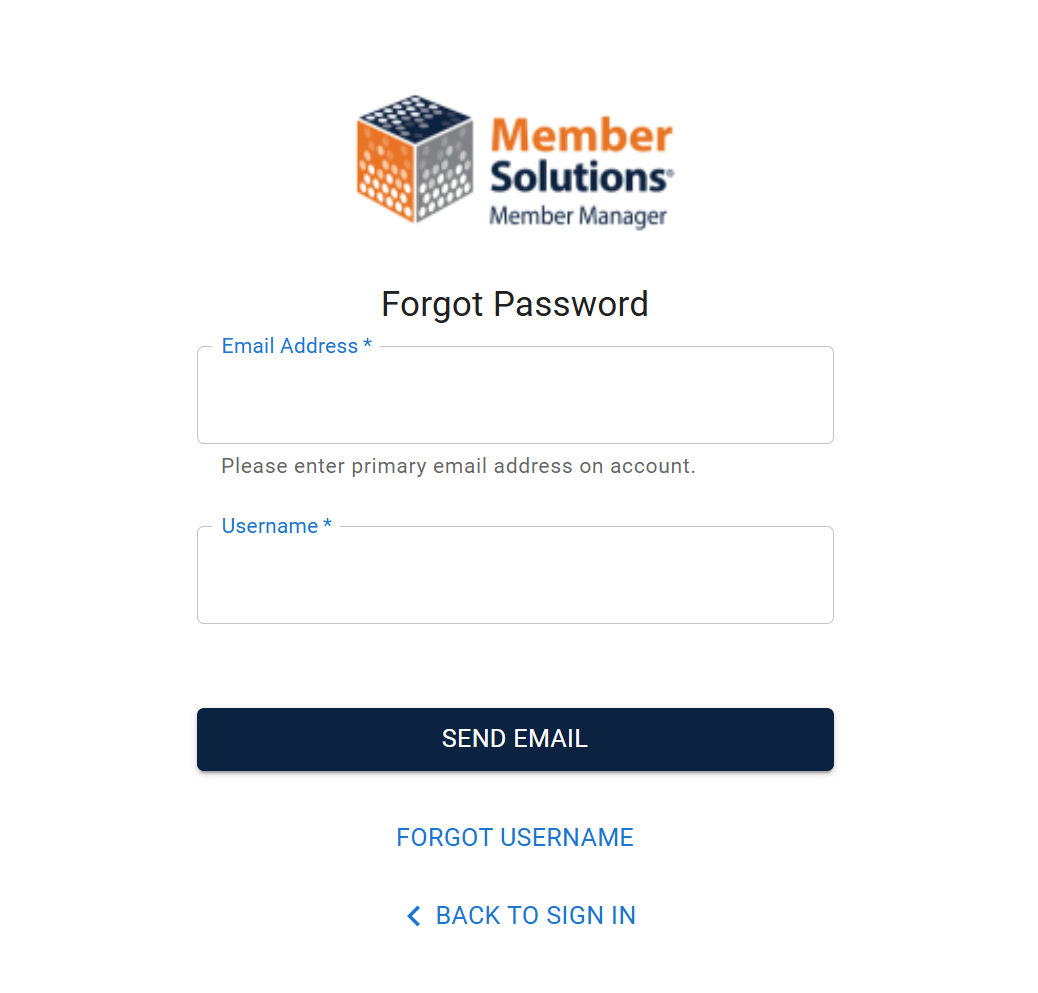
- You'll be prompted to input your username and email address to receive a forgot password email. Once you've entered both continue by clicking Send Email
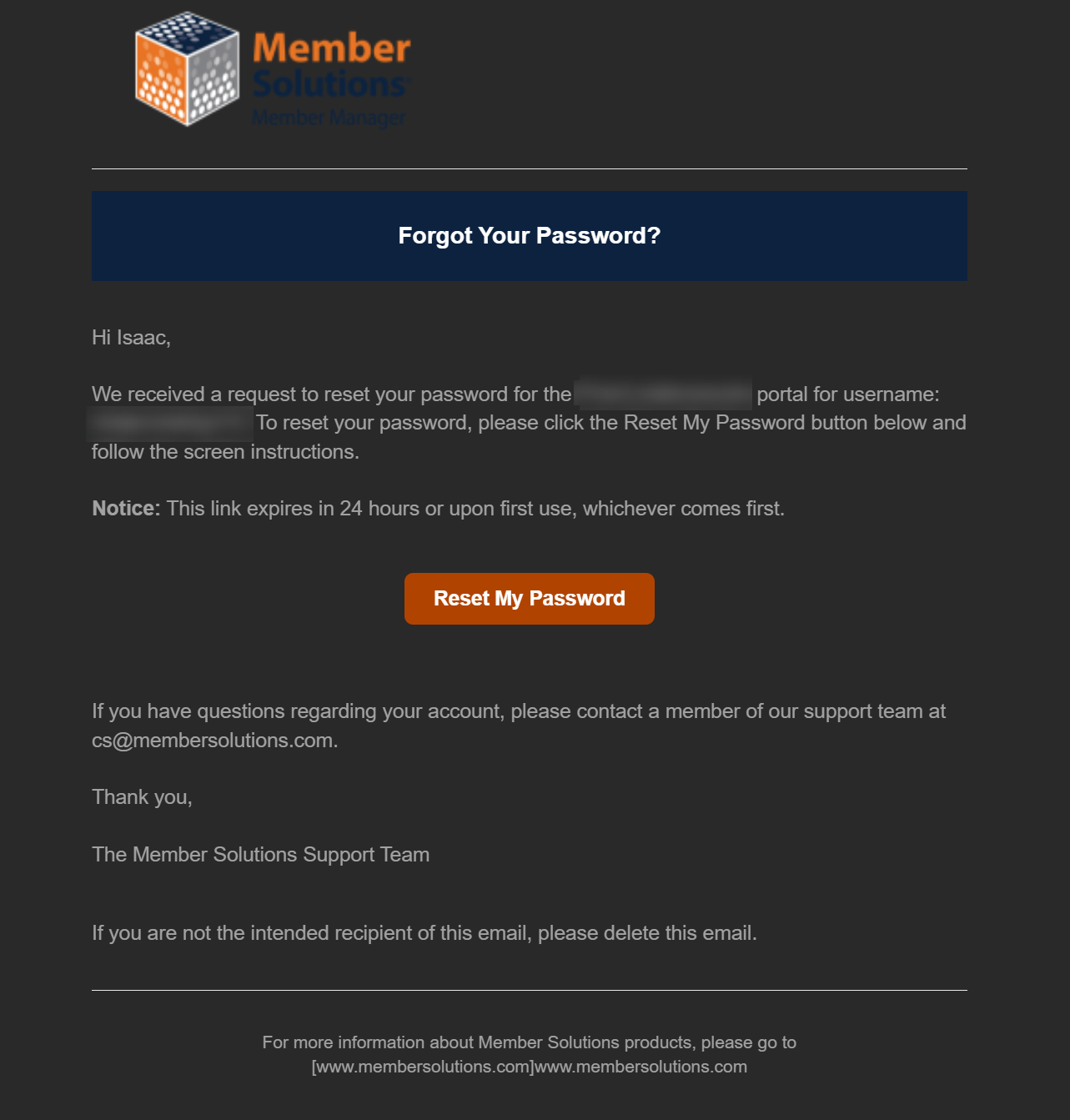
- You should receive an email containing a link to create a new password, click on the Reset Password button. This link is only available for 24 hours, or one use whichever happens first. If you need to request a password request again because 24 hours have lapsed, or you clicked the link once already you will have to restart the process from step one.
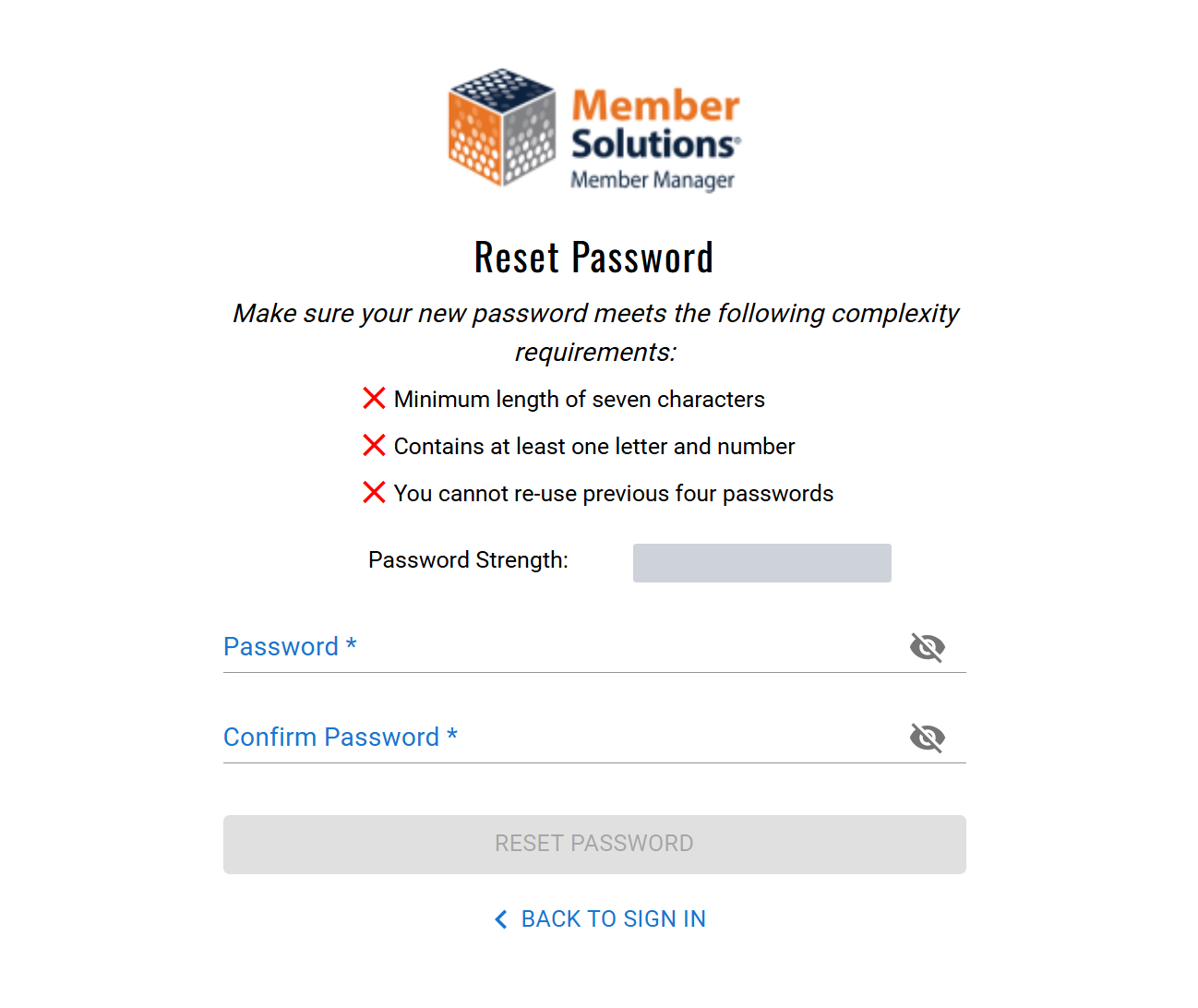
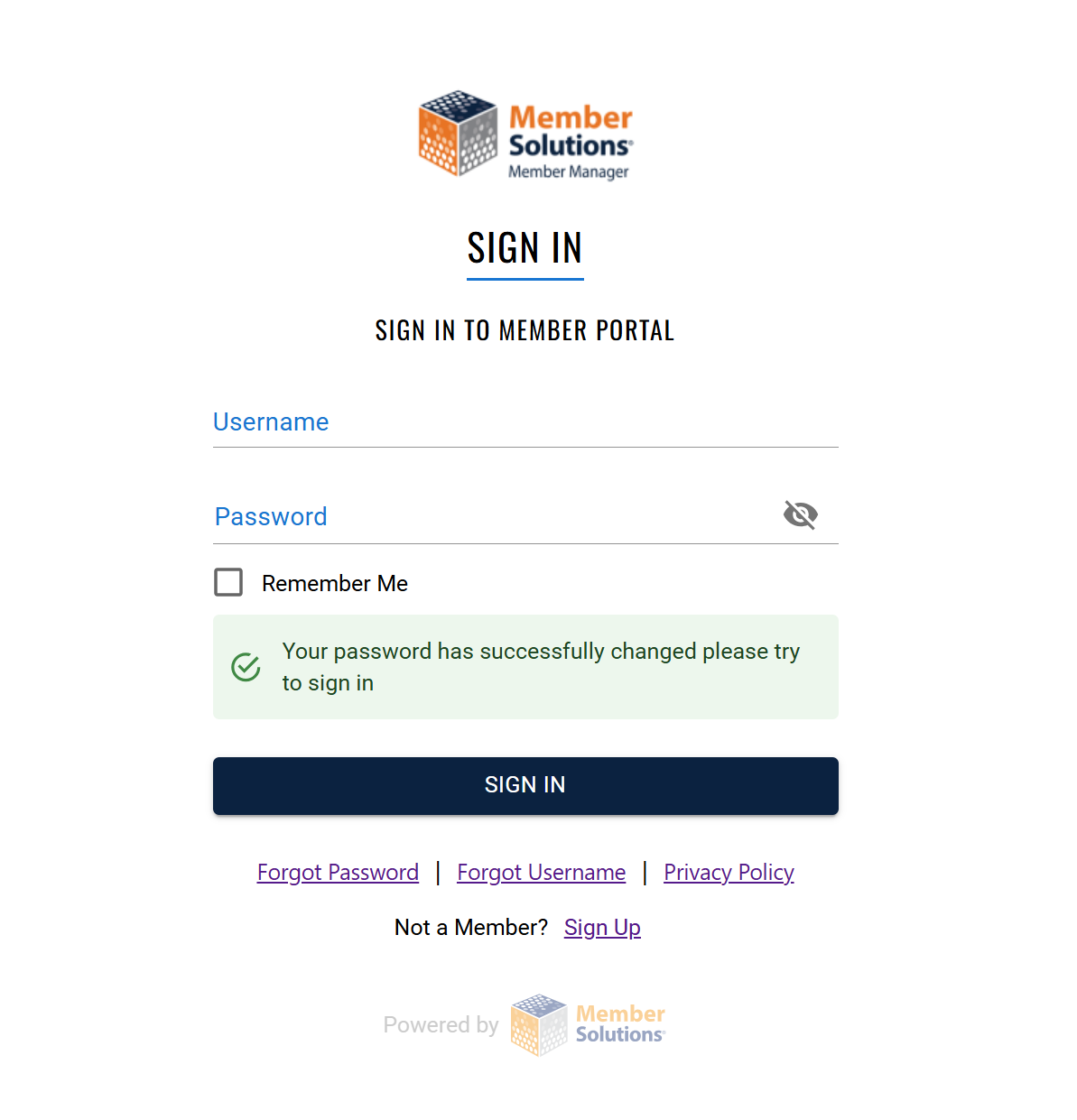
- Once you click on Reset Password you'll be taken to a page where you can configure a new password. Enter your new password here, and click on Reset Password. This will confirm your new password, and return you to the login screen where you can use this newly created password to login.
Still need help?
If you can’t find what you’re looking for, our support team is happy to help.