

Assign Staff
Last modified by David Stadnyk on 2026/05/06 16:33
Last updated on May 06, 2026
Assign Staff
Staff members must be assigned to a schedule before they can be selected as an option on that schedule.
Navigating to Staff Assignment
- Click Setup in the left-hand navigation sidebar.
- Click Staff.
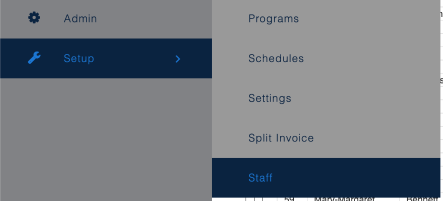
This opens the Select Staff page, which displays a list of all staff members with the following columns: ID, First Name, Last Name, and Email.
The list can be filtered using the search bar at the top:

- Keyword – Search by name or email.
- Schedules – Filter the staff list to show only those assigned to a specific schedule. Defaults to All.
- Status – Filter by active/inactive status. Defaults to Active.
Click Search to apply filters.
Assigning Staff to a Schedule
- Tick the checkbox next to each staff member you want to assign.
- At the bottom of the page, select the target schedule from the Schedule dropdown.
- Click Assign Staff to complete the assignment.

Removing Staff from a Schedule
To remove staff from a schedule, tick the checkbox next to the relevant staff members, select the schedule from the Schedule dropdown, and click Remove From Schedule.
Still need help?
If you can’t find what you’re looking for, our support team is happy to help.